
To play a Calc Solver game, open the calculator site, go to its Games menu or turn on Code Mode, and enter 0000. Then choose a game, read its controls, and start the round. Some versions open the menu after the fourth digit; others need Enter or equals.
Opening the menu is the easy part. A game that works on a laptop may be awkward on a phone. A code copied from a video may launch a different game on another site.
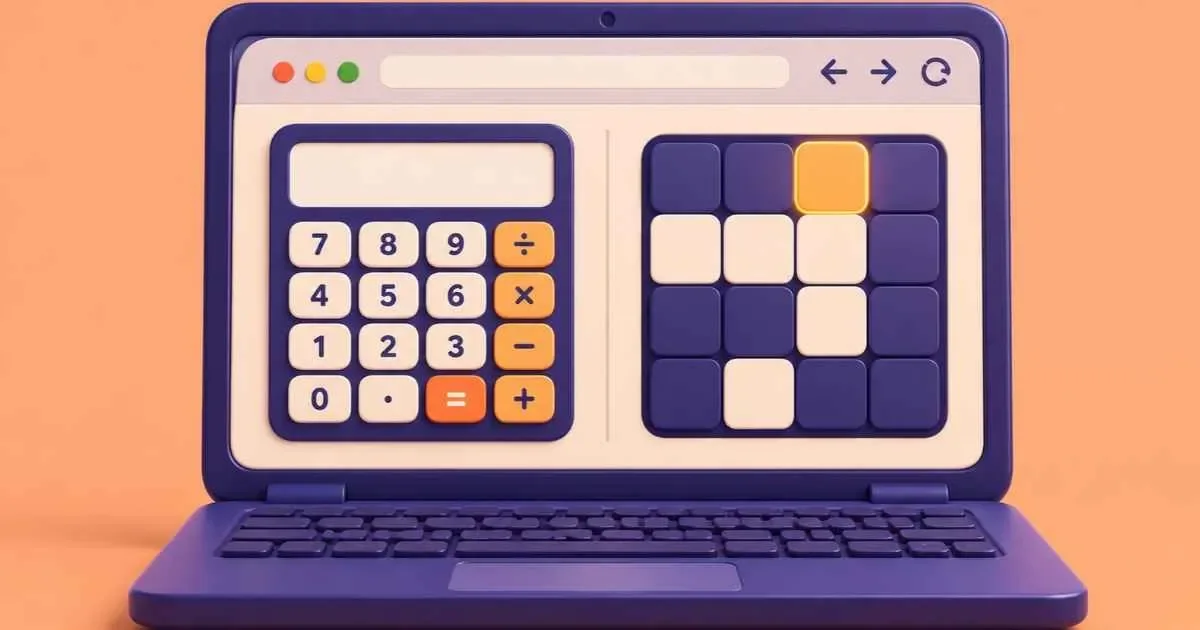
How to Open the Game Menu
- Go to the calculator homepage and look for a Games link or a Code Mode control near the keypad.
- Turn on Code Mode and look for a code prompt or digit indicators.
- Type 0000 on the on-screen keypad, or your keyboard if supported.
- Press Enter or equals if the menu doesn’t open by itself.
- Pick a game and read the instructions before starting a timed round.
If the zeros appear in the normal display, Code Mode isn’t on. If your typing lands in the address bar, click back into the calculator or use the on-screen keys.
Using Direct Game Codes
Many menus show a four-digit code beside each game. You can enter that code next time to open the game directly. But catalogues differ between sites, so the same number can mean a different title elsewhere. Save the game name, the site, and the code together.
Common Maths Game Types
| Game | How it works | Check first |
|---|---|---|
| Arithmetic sprint | Answer as many sums as possible before time runs out | How to submit and when the timer starts |
| Number guessing | Find a hidden number using higher or lower hints | The range and how attempts are counted |
| Missing number | Fill in the value that makes an equation true | Which part of the equation is missing |
| Fraction comparison | Pick the larger fraction or mark them equal | Where the “equal” option is |
Two Quick Strategies
- Guessing 1 to 100: start at 50. If the hint says higher, try 75. Each middle guess removes about half the options.
- Fractions: compare each to one-half. Three-eighths is below one-half and five-ninths is above it, so five-ninths is bigger.
Controls on Laptop and Phone
The keys for entering a code may differ from the in-game controls. On a laptop or Chromebook, click inside the game if keys don’t respond. If arrow keys scroll the page, click the game again and check it supports arrows.
On a phone, look for touch controls first. Rotate the screen or use full screen if the area is cramped. A working menu doesn’t guarantee every game works on touch.
Troubleshooting Checklist
- Blank game: go back and try another title. If several fail, check your connection and reopen the page.
- Frozen game: look for Start, Play, or Continue, or a prompt waiting for a tap or key.
- Video code doesn’t match: confirm you’re on the same website as the video.
- School or work device: follow the owner’s rules if games are restricted.
Warning: refreshing the tab may restart your round. When you finish, use Back, Close, or Calculator, and confirm regular mode before your next real calculation.
Comments
No approved comments yet. Join the conversation below.